Add your Expensya Card to Apple Wallet
If your company has assigned you a virtual card, you can add it to Apple Wallet either directly via the Expensya App or manually via the Apple Wallet app.
How to add your Expensya Card to Apple Wallet
Option 1 - via the Expensya app
Depending on whether you are new to the Expensya app or an existing user, follow the steps below to start the process.
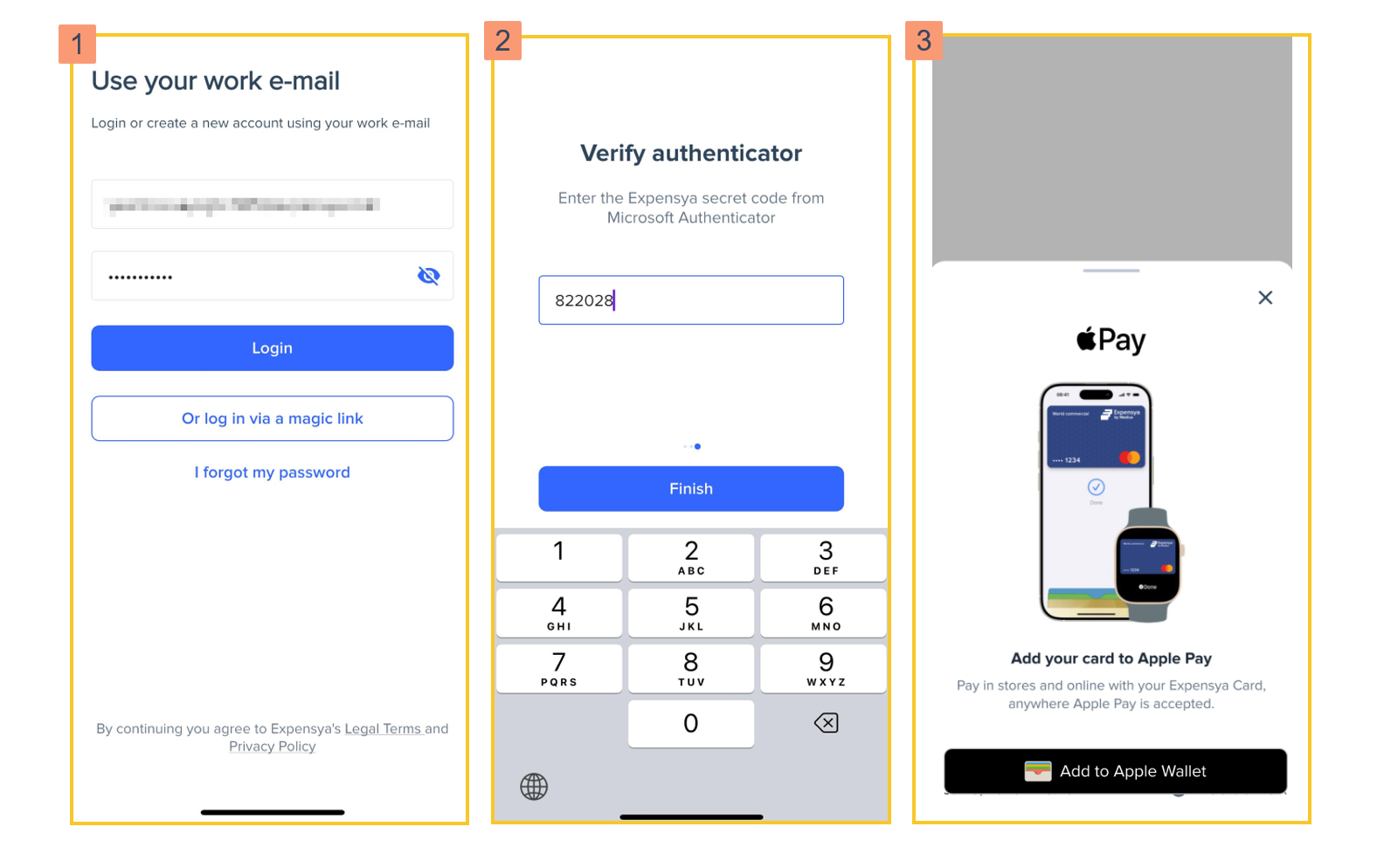
- If you are setting up the app for the first time:
- Download the Expensya app from the App Store and log in with your work email and password.
- Once logged in, a prompt appears inviting you to add your card to Apple Wallet.
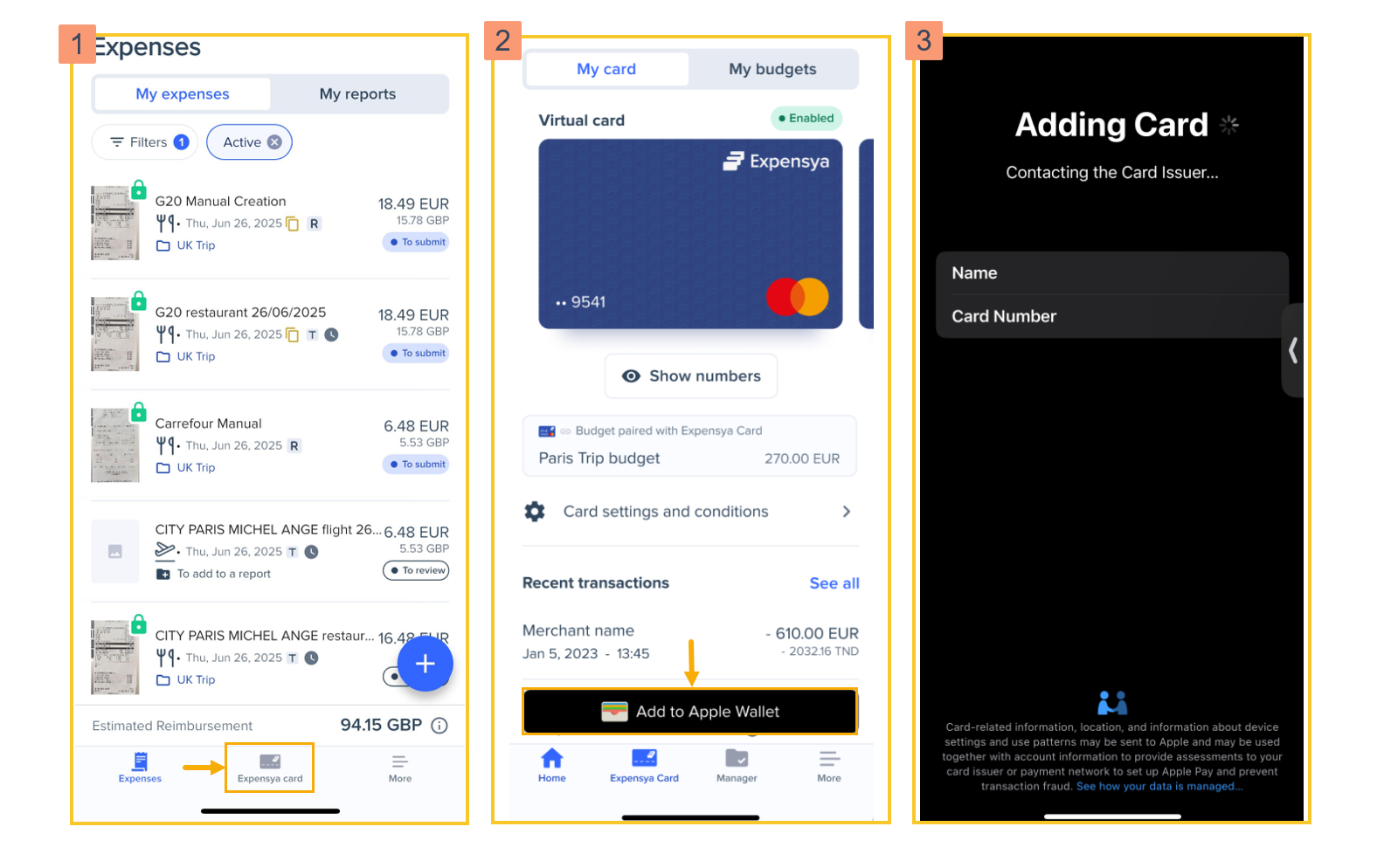
- If you are already using the app:
- Tap Expensya Card in the bottom menu, then go to the My Cards tab.
- Tap Add to Apple Wallet.
- You'll be redirected to the Apple Wallet app to finish the setup.
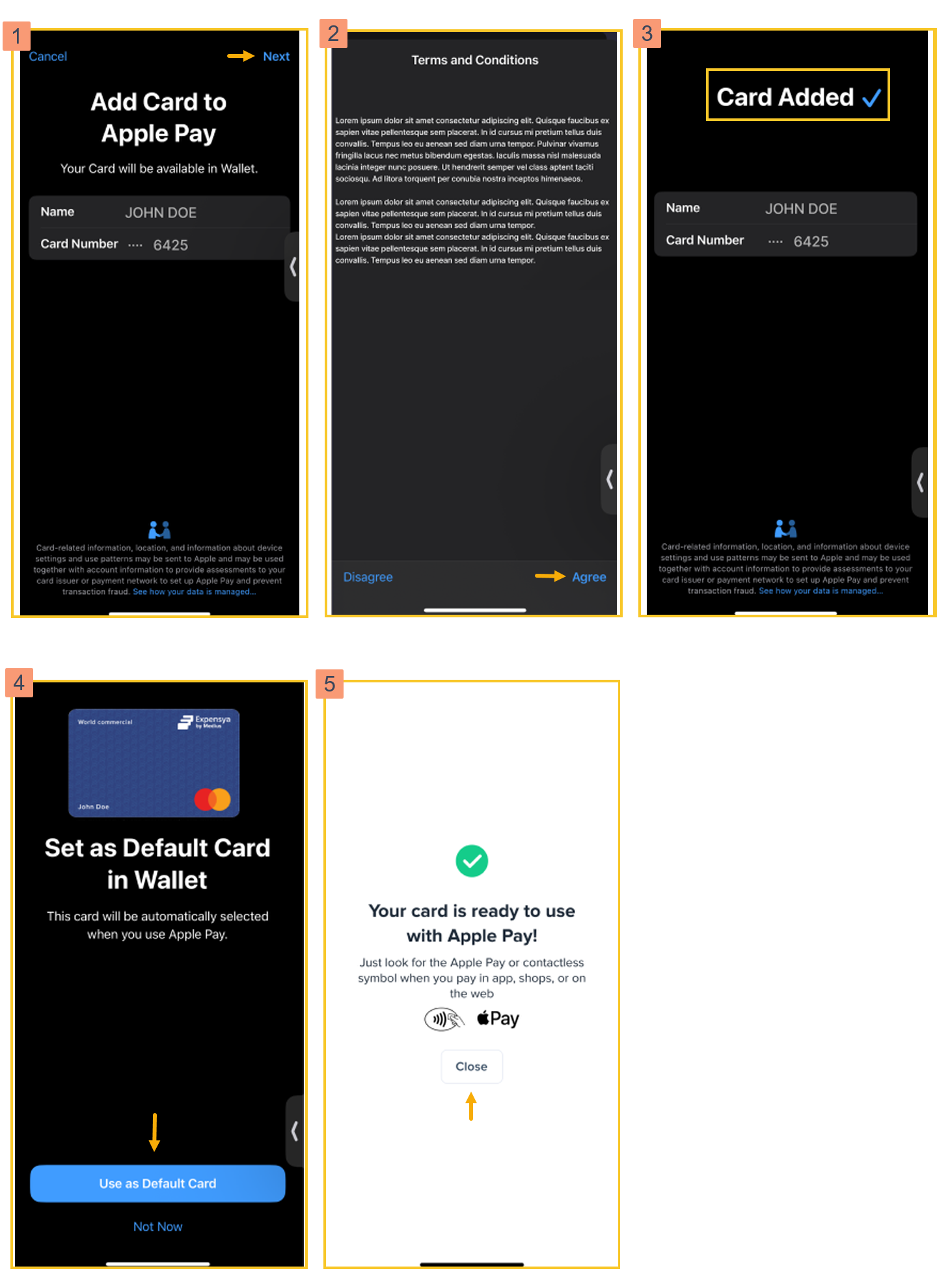
- Once you are redirected to Apple Wallet, follow these steps to finish the setup:
- Review your name and card number, then tap Next.
- Read the terms and conditions, then tap Agree.
- A confirmation message appears showing the card has been added.
- You'll be asked if you want to set your Expensya card as your default payment card.
- Tap Use as Default Card to use it for all Apple Pay transactions.
- Tap Not Now to keep your current settings.
- Your card is now ready to use. Tap Close to finish the operation.
Option 2 - add manually via Apple Wallet
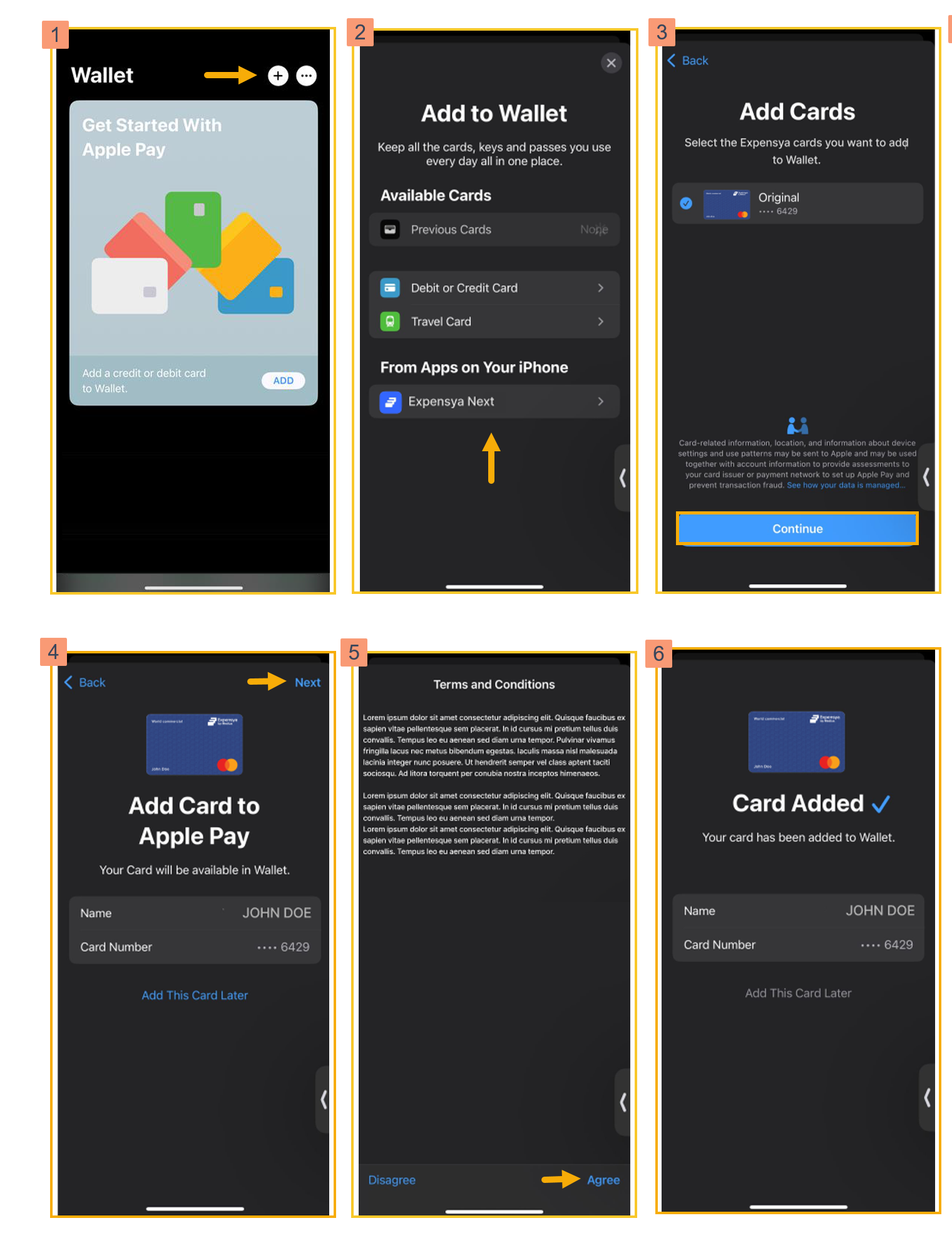
If you prefer, you can start the process directly from Apple Wallet. First, retrieve your card numbers from Expensya, then, follow these steps:
- Open the Wallet app and tap the + icon in the top-right corner.
- Under From Apps on Your iPhone, select Expensya Next.
- Select your card and tap Continue.
- Review your name and card number, then tap Next.
- Read the terms and conditions, then tap Agree.
- A confirmation message appears showing the card has been added.
Face ID or another authentication method will be used to add the card.
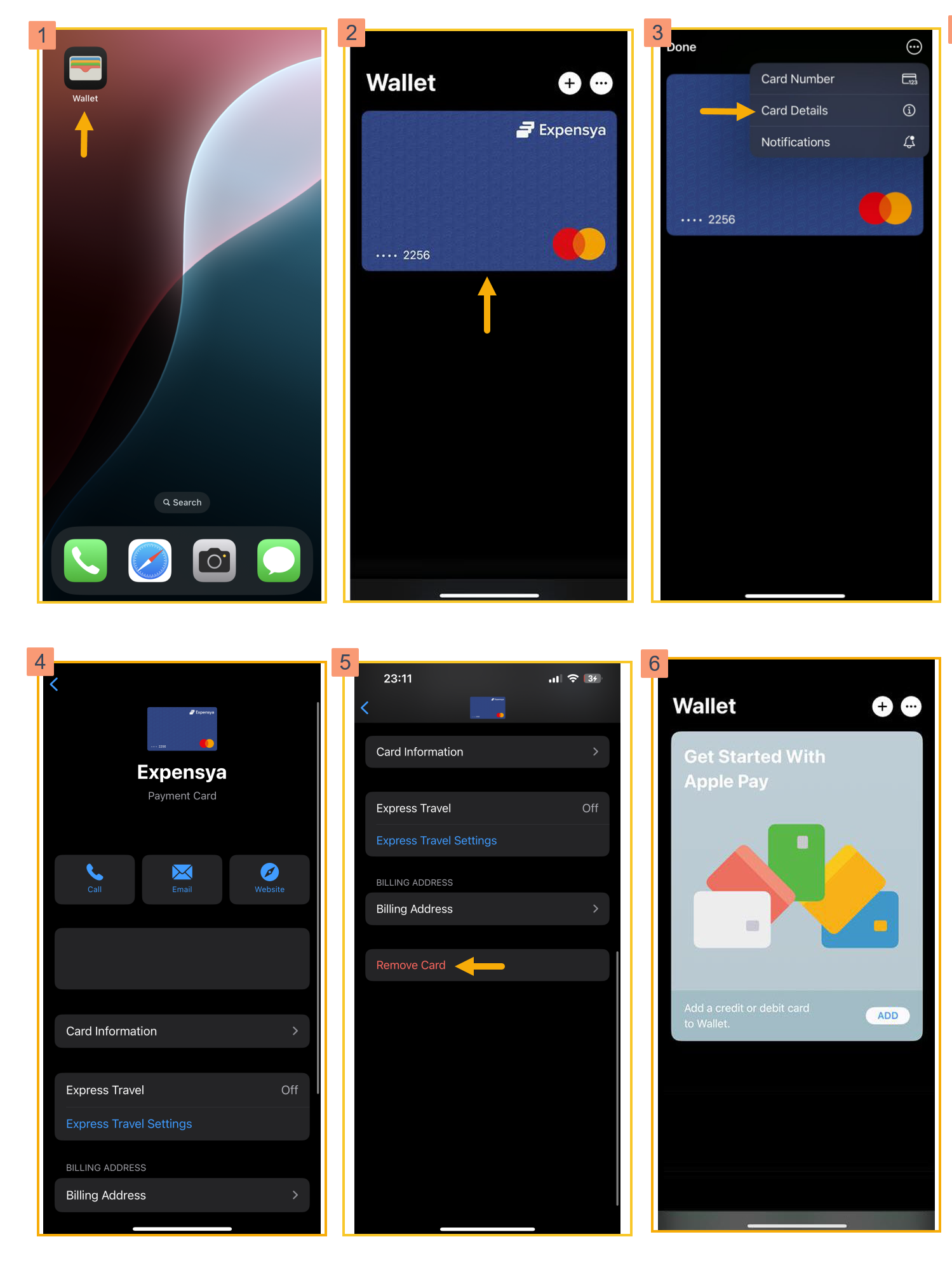
How to remove your Expensya Card from Apple Wallet
If you no longer use the Expensya Next app and have deleted it, you also need to remove your Expensya Card from Apple Wallet. To do that, follow these steps:
- Open the Wallet app on your iPhone.
- Tap on your Expensya card to select it.
- Tap the three dots button at the top right of your screen, then tap Card Details.
- The Expensya Card details page opens.
- Scroll to the bottom and tap Remove Card.
- Your Expensya card is now removed from Apple Wallet.