How a French e-invoice is handled in Medius Expense

When a merchant issues an e-invoice with your routing IDs, Medius Expense automatically processes it and either creates a new expense or reconciles it with an existing one — without any manual action required from you.
E-invoice reception flow
- The merchant issues the e-invoice and submits it to their PA (accredited platform).
- The PA routes it to your company's PA.
- Your company's PA transmits the e-invoice to your Medius Expense account.
- Medius Expense receives the e-invoice and identifies the recipient employee using their professional email address.
- Medius Expense checks whether a matching expense already exists for that employee.
How Medius Expense processes a received e-invoice
Scenario 1 — No matching expense exists
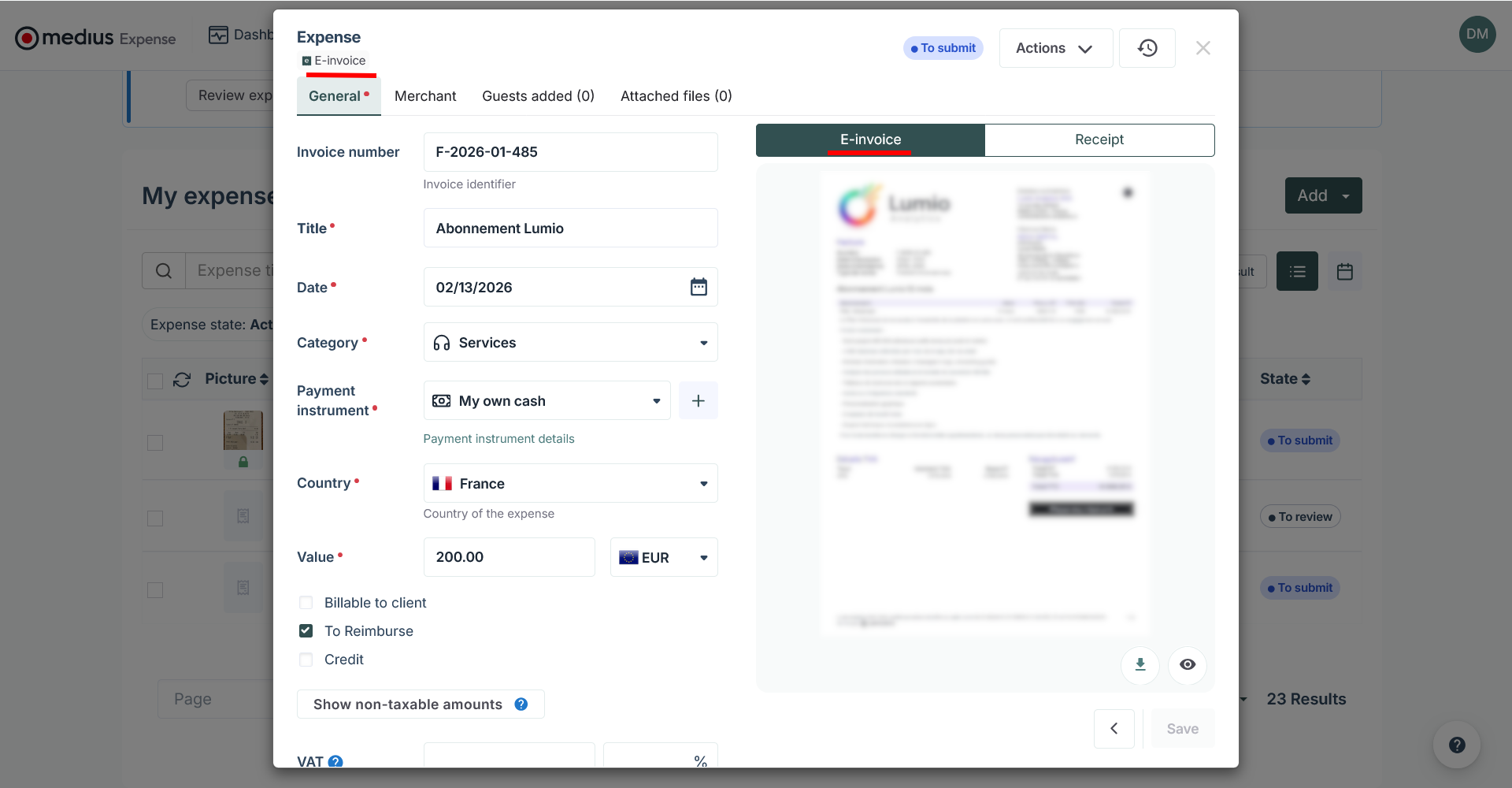
Medius Expense automatically creates a new expense on your behalf and:
- Pre-fills the expense fields with the e-invoice data.
- Makes the original e-invoice file downloadable from the expense.
- Displays a generated readable PDF on the expense in the receipt tab. A second tab is always available if you want to attach the paper receipt manually.
- Applies an e-invoice tag on the expense to indicate that it includes an e-invoice.
- Notifies you by email and by push notification on mobile.
Scenario 2 — A matching expense already exists
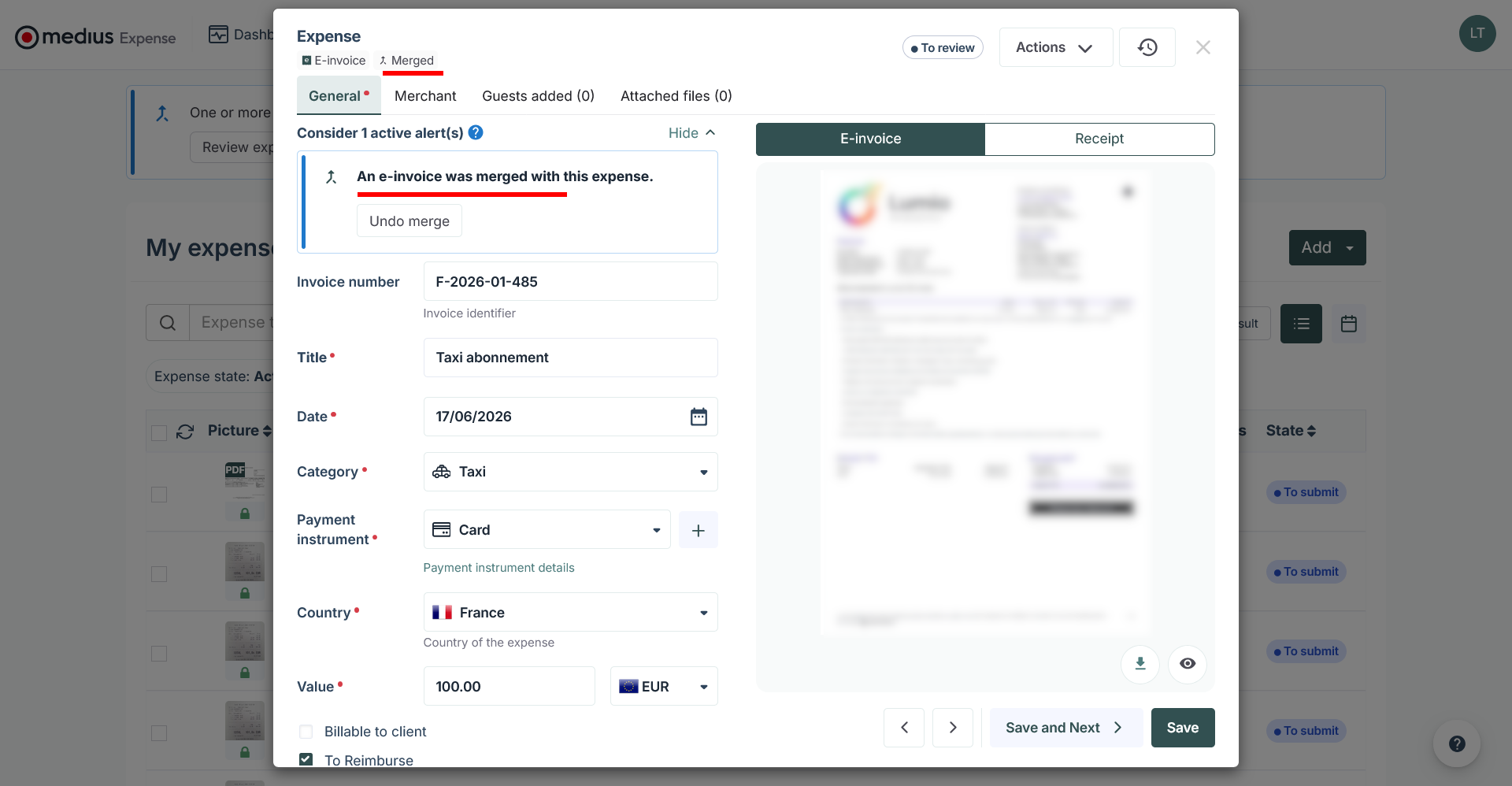
If a matching expense already exists — for example, one you created manually or one generated from a bank transaction — Medius Expense automatically reconciles the two. The e-invoice is merged with the existing expense and:
- Expense fields are updated or completed with the e-invoice data (where fields differ and were not used as matching criteria).
- A generated readable PDF is displayed on the expense in the dedicated tab, alongside the receipt displayed in a second tab.
- The original e-invoice file is made downloadable from the expense.
- An e-invoice tag is applied on the expense to indicate that it includes an e-invoice.
- A Merged tag is applied on the expense to indicate that a reconciliation has taken place.
- A banner is displayed on the expense to inform you that a merge occurred.
What to do if the merge is incorrect
If Medius Expense has matched your e-invoice to the wrong expense, you can undo the merge directly from the expense:
- Open the merged expense.
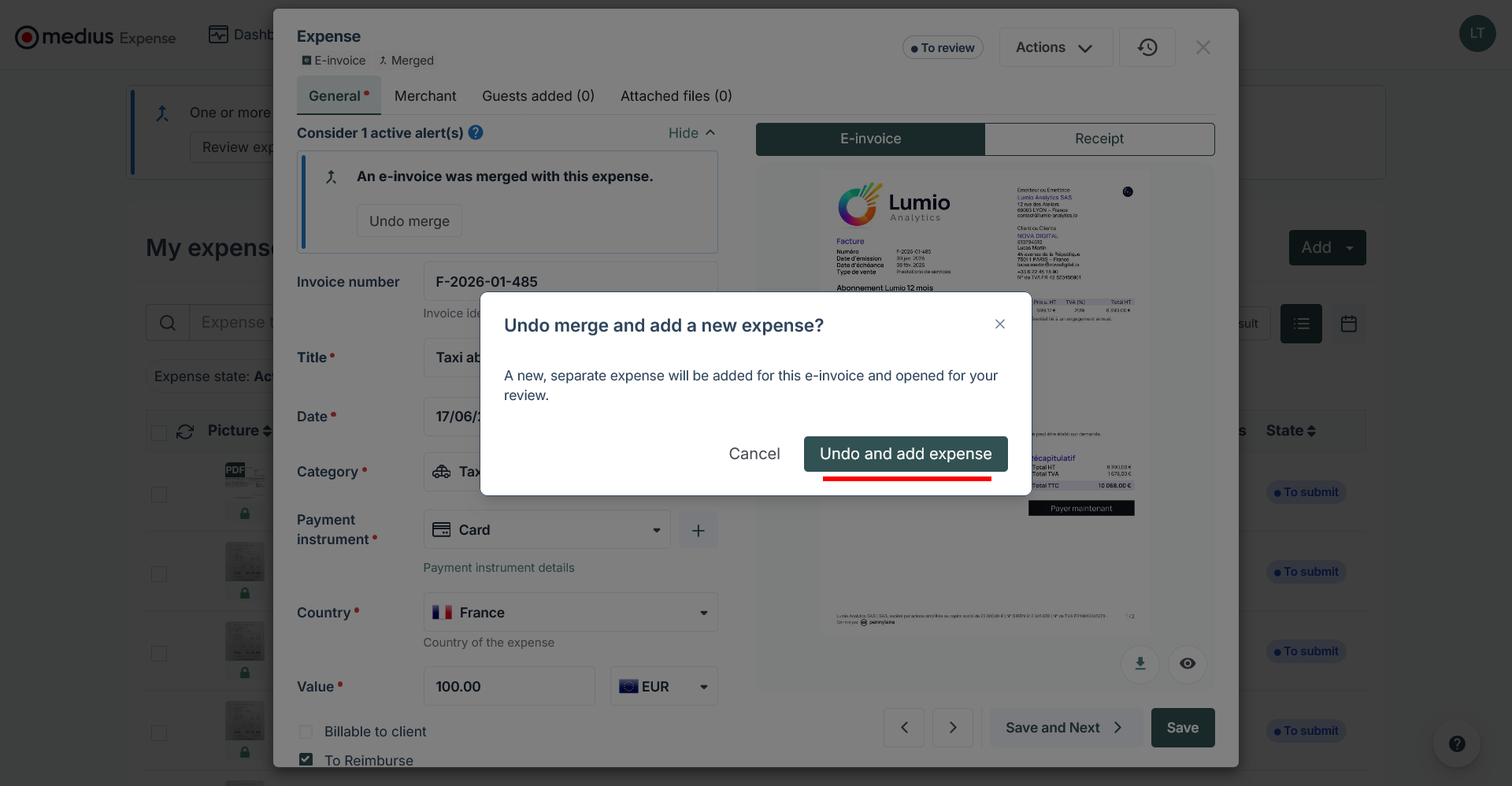
- Use the undo merge option to detach the e-invoice from the expense.
- The e-invoice is removed from the expense and a new expense is automatically created from the e-invoice data.