Monitor received e-invoices in Medius Expense — France

Medius Expense provides a dedicated view allowing administrators and accountants to monitor all e-invoices received in their company account. You have full visibility over incoming e-invoices and their status, and can take action when an invoice cannot be automatically routed to an employee.
Where to find it
The e-invoice monitoring view is accessible from two places:
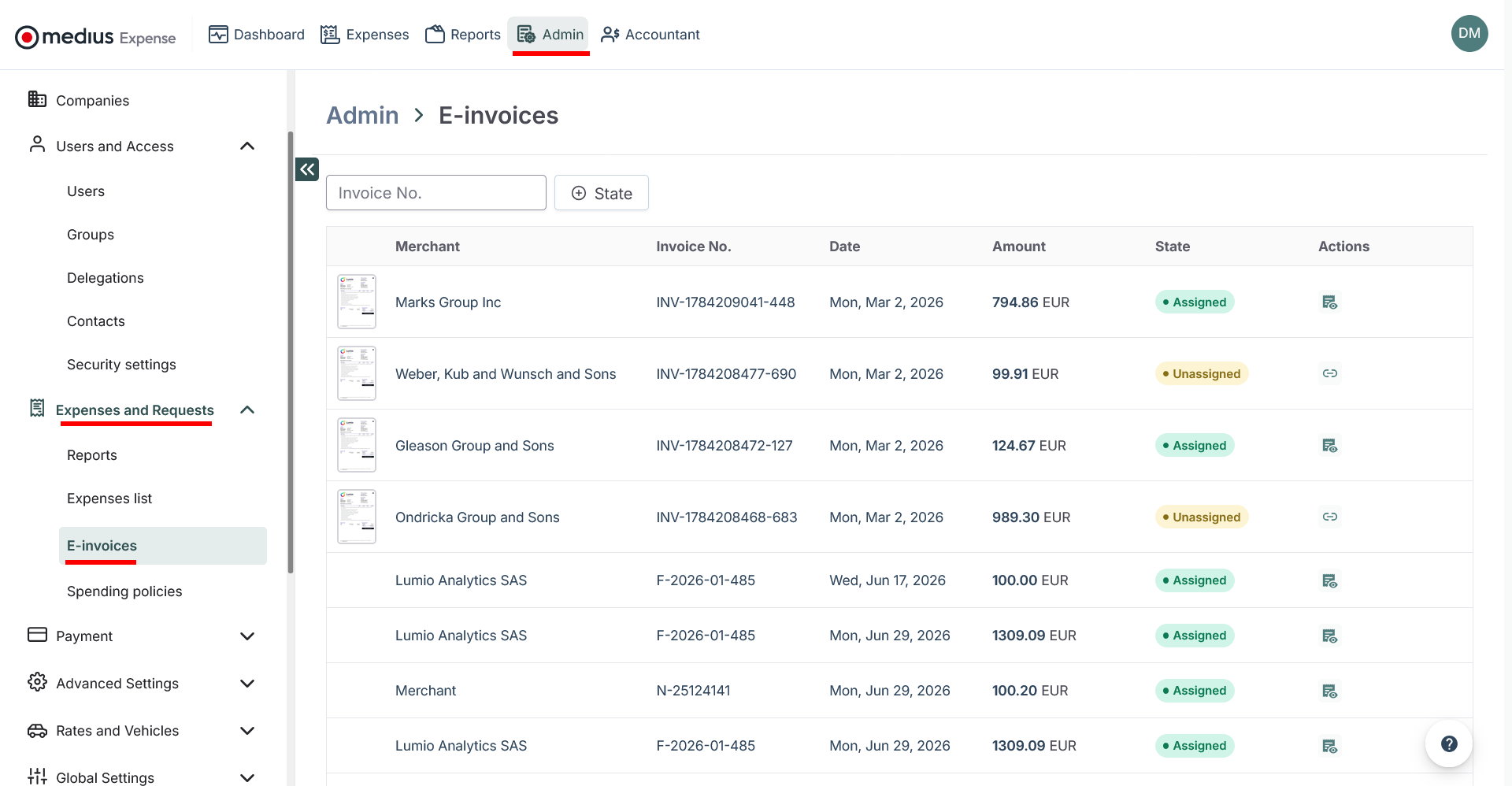
- Admin Panel → E-invoices list (dedicated page)
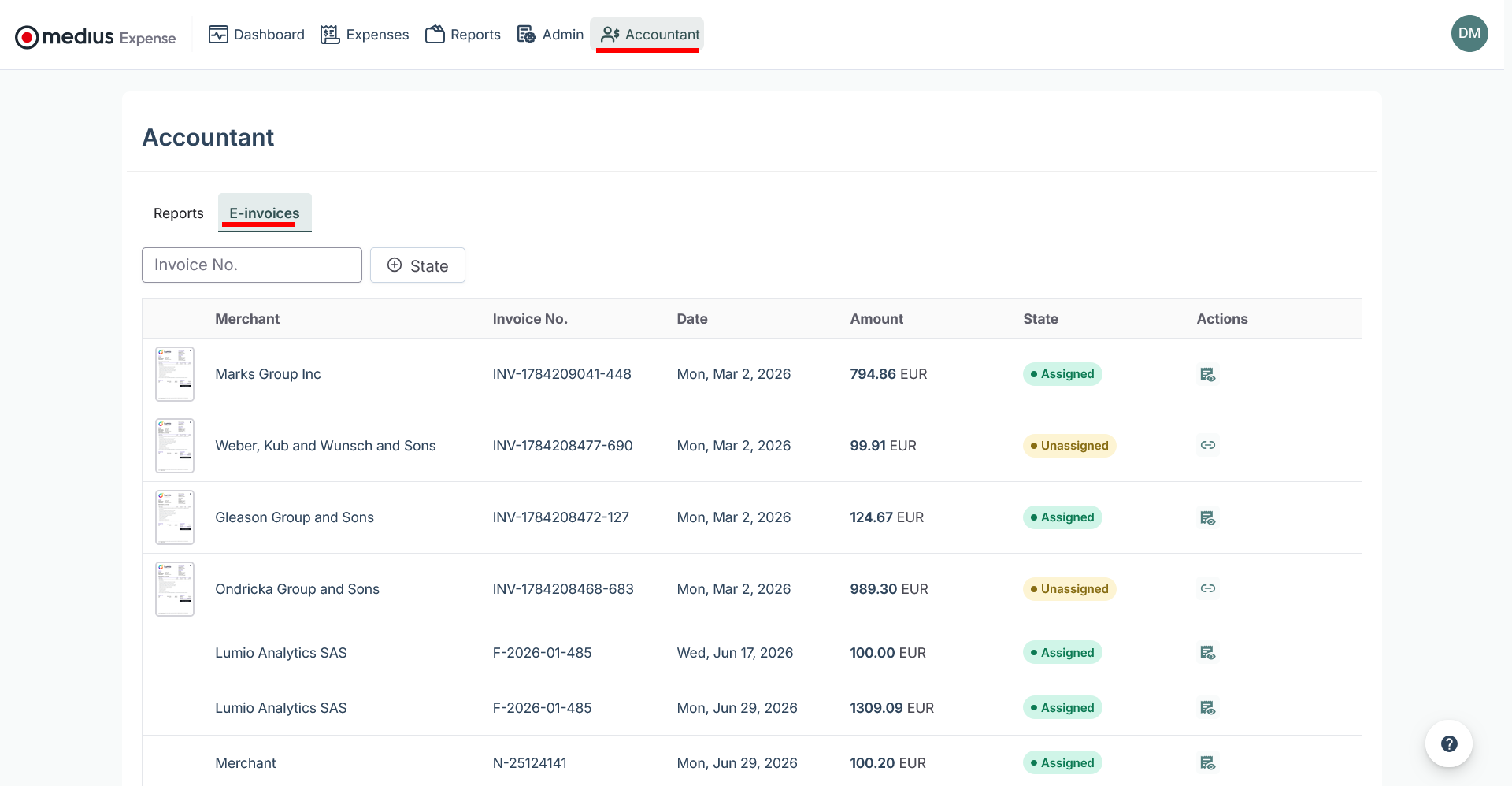
- Accountant view → E-invoices tab
Understanding e-invoice statuses
Each received e-invoice displays one of the following statuses:
- Assigned — the e-invoice has been successfully linked to an employee or expense, either automatically or manually.
- Unassigned — the e-invoice could not be automatically routed. This typically happens when the merchant did not include a valid employee identifier in the routing information. Action is required.
Manually assigning an unassigned e-invoice
When an e-invoice arrives without a recognizable employee identifier, it appears as Unassigned in the list. Admins and accountants can assign it manually in two ways.
Option 1 — Assign to an employee
Use this when an employee has informed you (outside of the app) that they are expecting an e-invoice.
- Open the unassigned e-invoice.
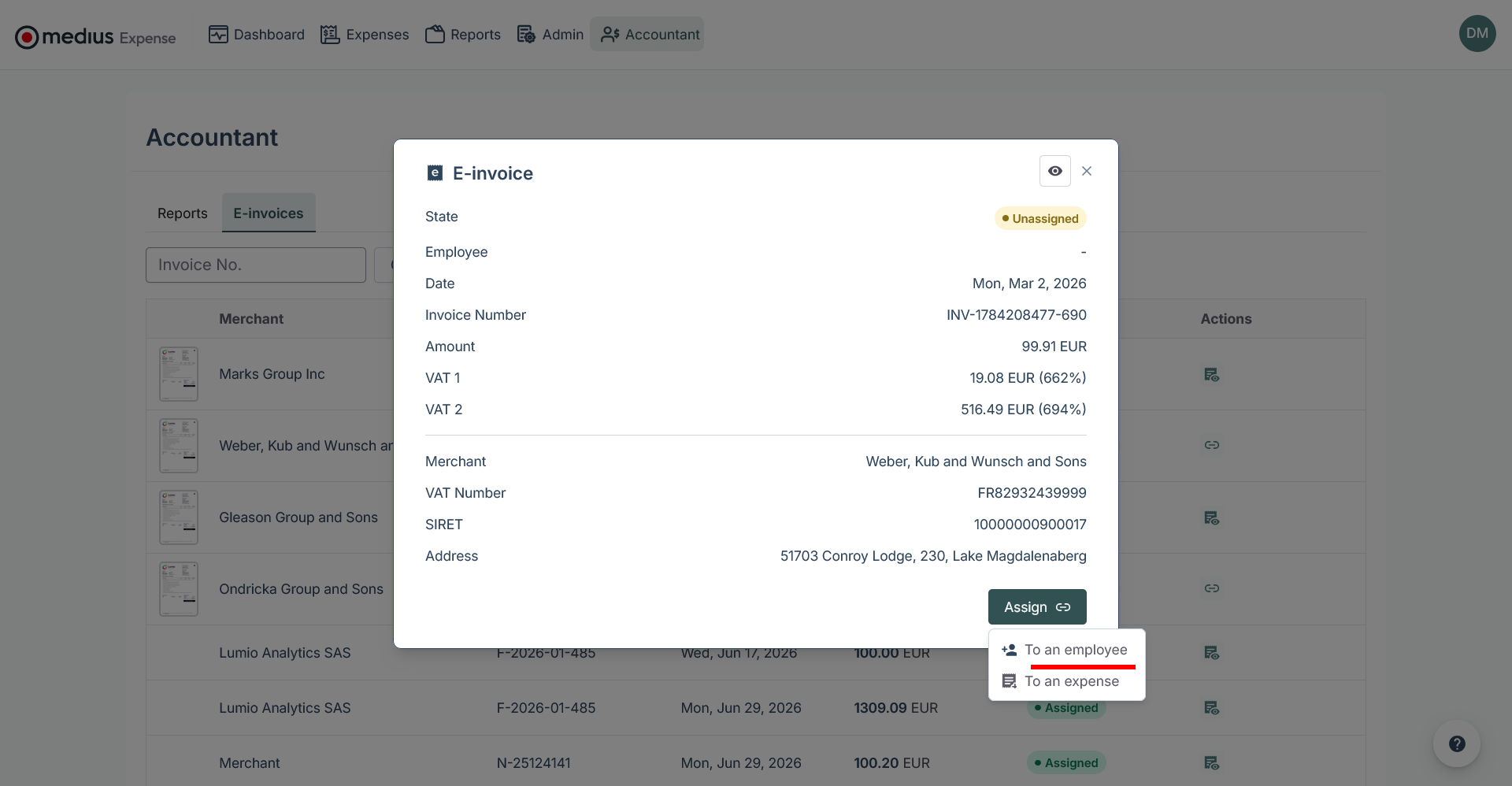
- Select Assign to employee and search for the employee by name.
- Confirm the assignment.
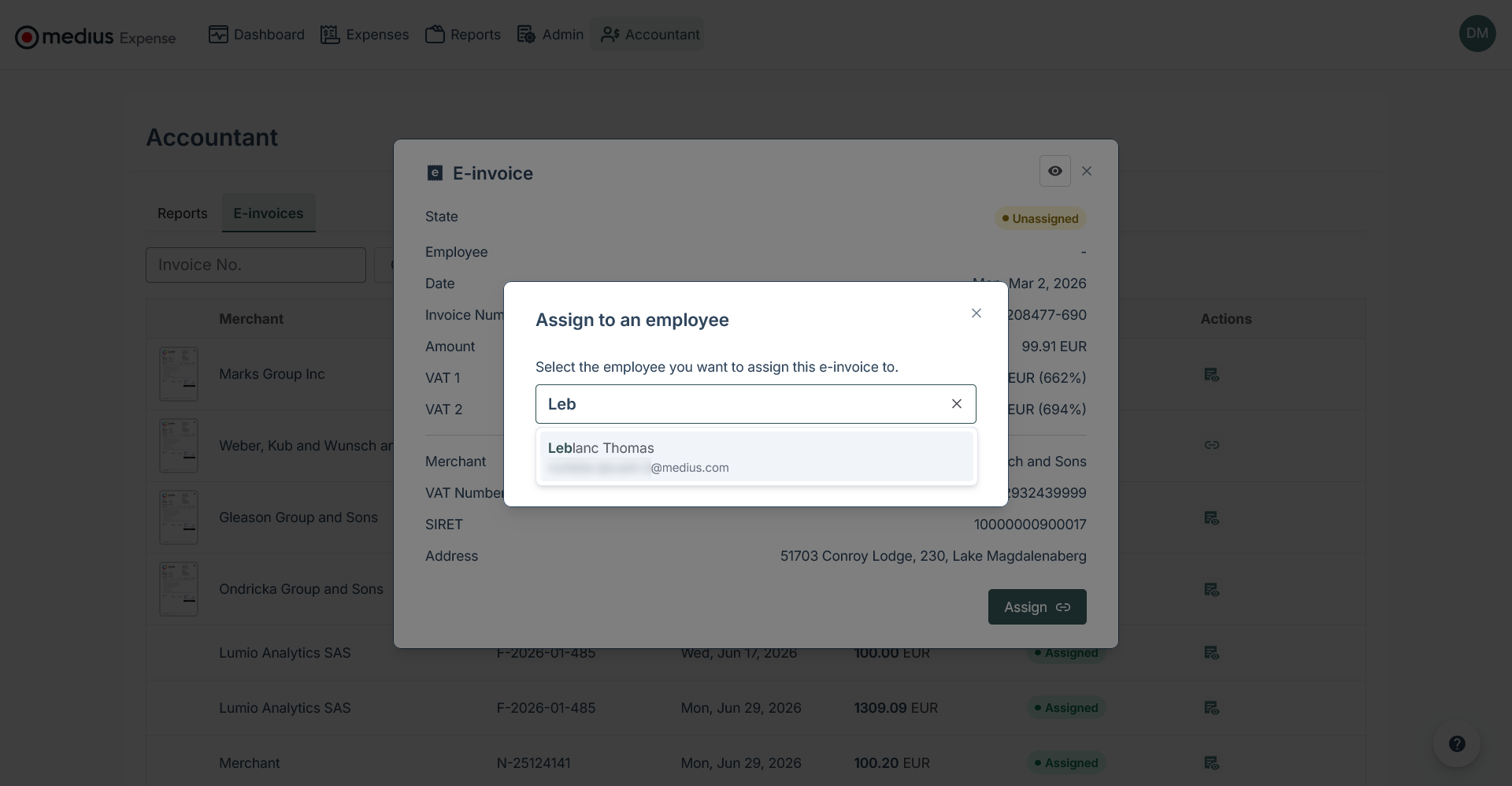
Once assigned, Medius Expense will automatically:
- Match the e-invoice with an existing expense in the employee's account if a match is found, or
- Create a new expense if no matching expense exists.
Option 2 — Assign directly to an expense
Use this when you can identify a specific expense the e-invoice relates to.
- Open the unassigned e-invoice.
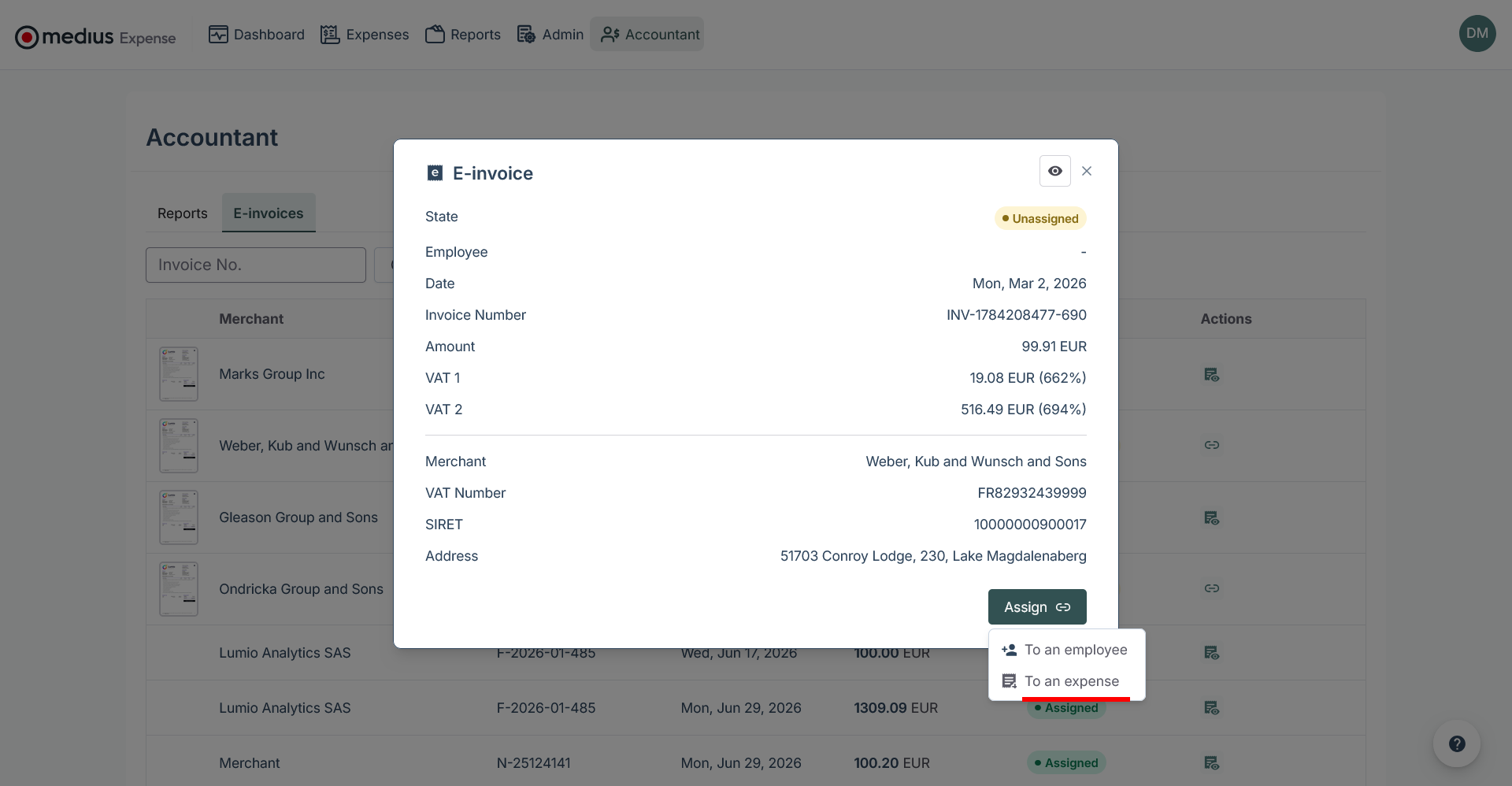
- Select Assign to expense.
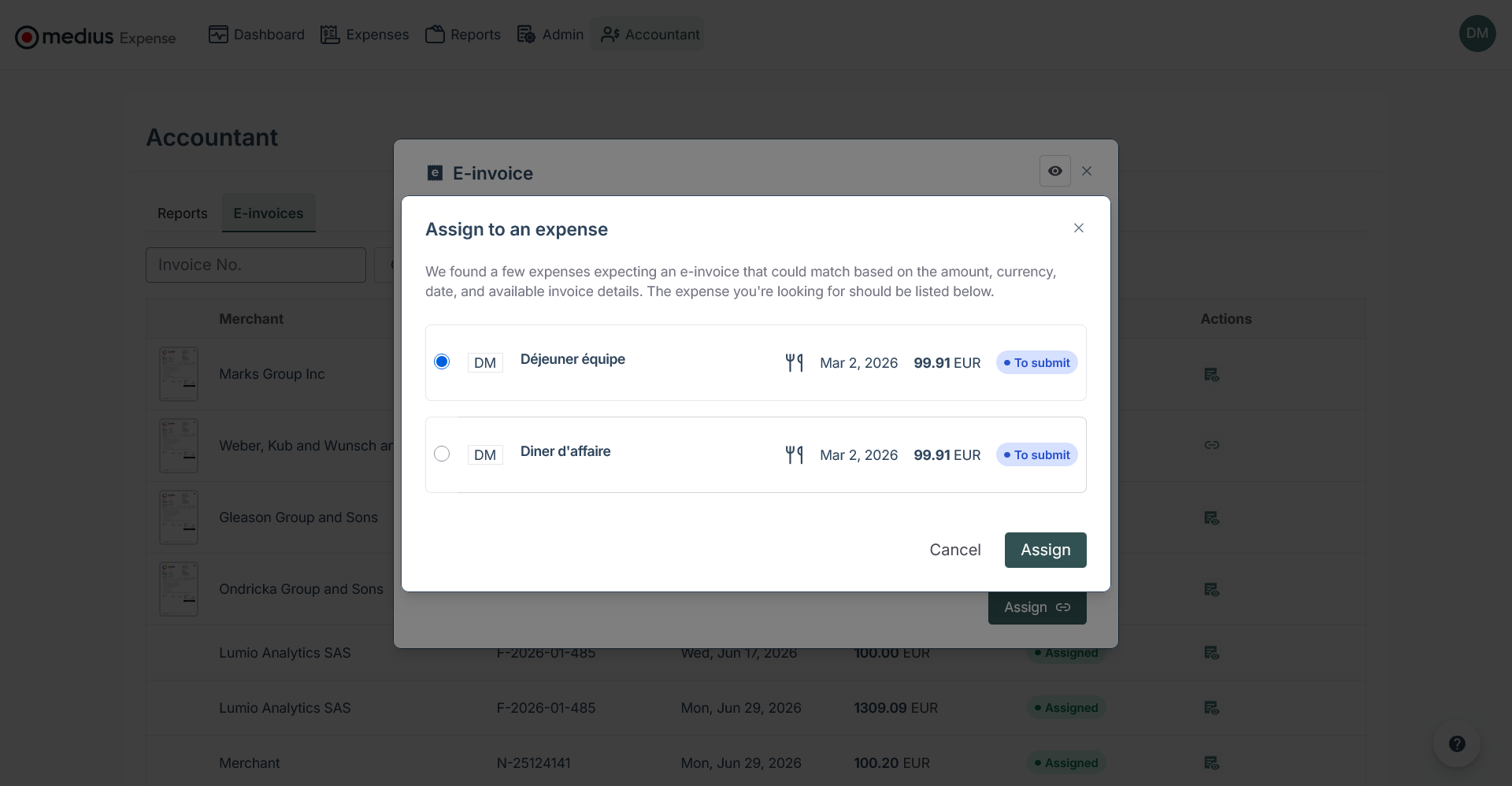
- Medius Expense will suggest up to 3 candidate expenses ranked by matching score.
- Select the correct expense from the suggestions.
Correcting a wrong assignment (Unassign)
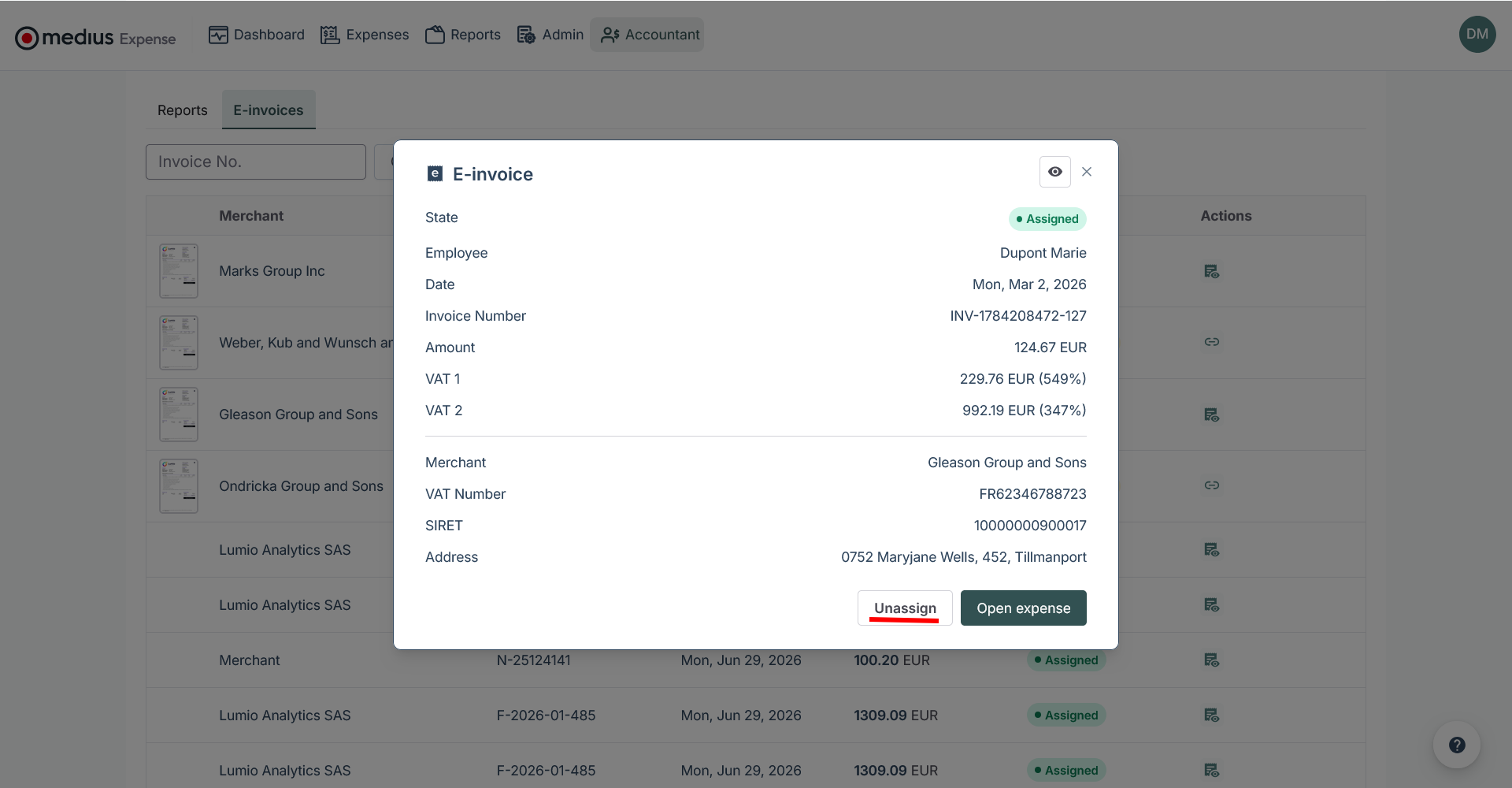
If an e-invoice was routed to the wrong employee — whether due to a manual assignment error or a mistake made by the merchant — it can be unassigned, as long as the expense has not yet been submitted by the employee.
To unassign:
- Open the assigned e-invoice.
- Select Unassign.