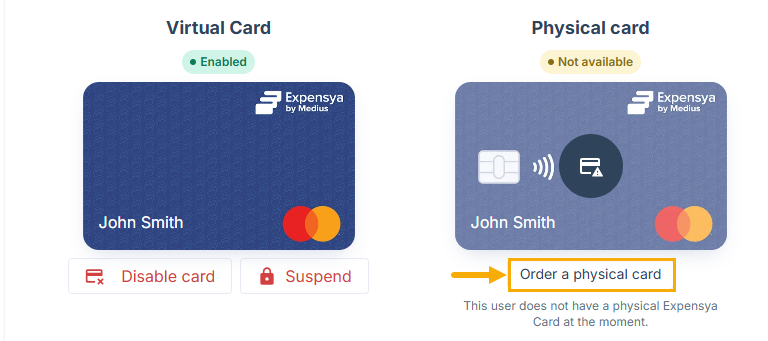
Disabe an Expensya Card
Before you disable an Expensya card, make sure that:
- The tenant's administrator has an enabled payment account. For more details, refer to this article.
- The administrator has the Manage Cards role enabled. For more details, refer to this article.
- The employee already has an enabled virtual or physical Expensya card.
Disable an Expensya card
To disable an Expensya card, follow these steps:
- As an Admin with the Manage Cards role, go to the Payment instruments section under the Payment menu, where you can view the list of Expensya card holders under the Expensya Cards tab.
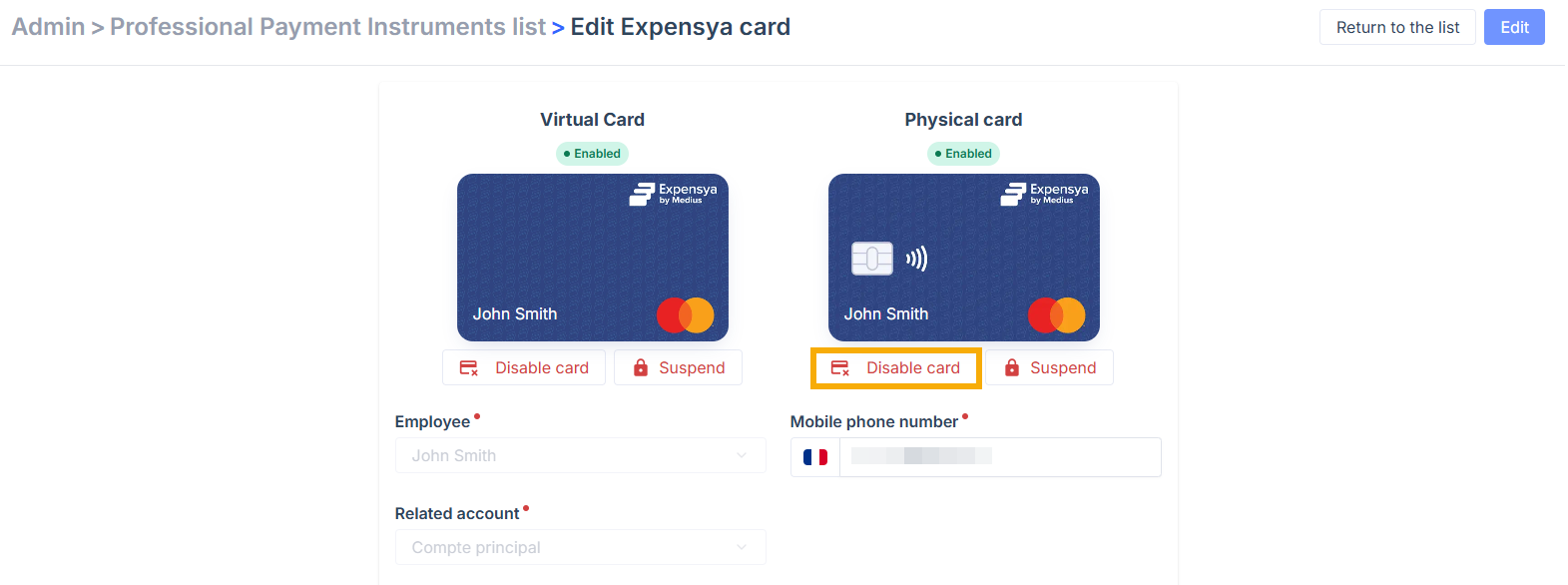
- Click the cardholder name to open the Expensya card settings. You’ll see both virtual and physical cards if they exist.
- Click Disable card under the card you want to disable.
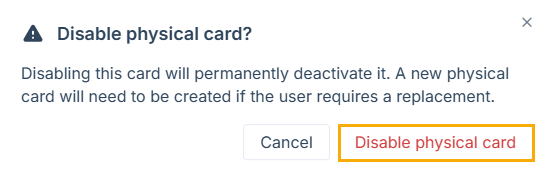
- In the pop-up window that appears, click Disable to confirm.
What's next?
Once a card is disabled:
- Its status updates to Not available for physical cards and Disabled for virtual cards.
- Any transaction attempted with the disabled card is automatically rejected.
If you disable a physical card, the virtual card remains enabled. If you disable a virtual card, both virtual and physical cards are disabled.
Disabled cards cannot be reactivated. To provide a card to the same employee, you should issue a new virtual or physical card as needed. For more details, refer to this article.